THE UPDATE JOURNAL / 1.7.2New at Jarvis.
More ways to play together. A better window to the web.
The same Jarvis you know.
Reopen the update ↗
06 OCTOBER 2026WEBSITE · DISCORD · WINDOWS APPS
01 / ONLINE 8 BALL POOLGood company.
One great table.
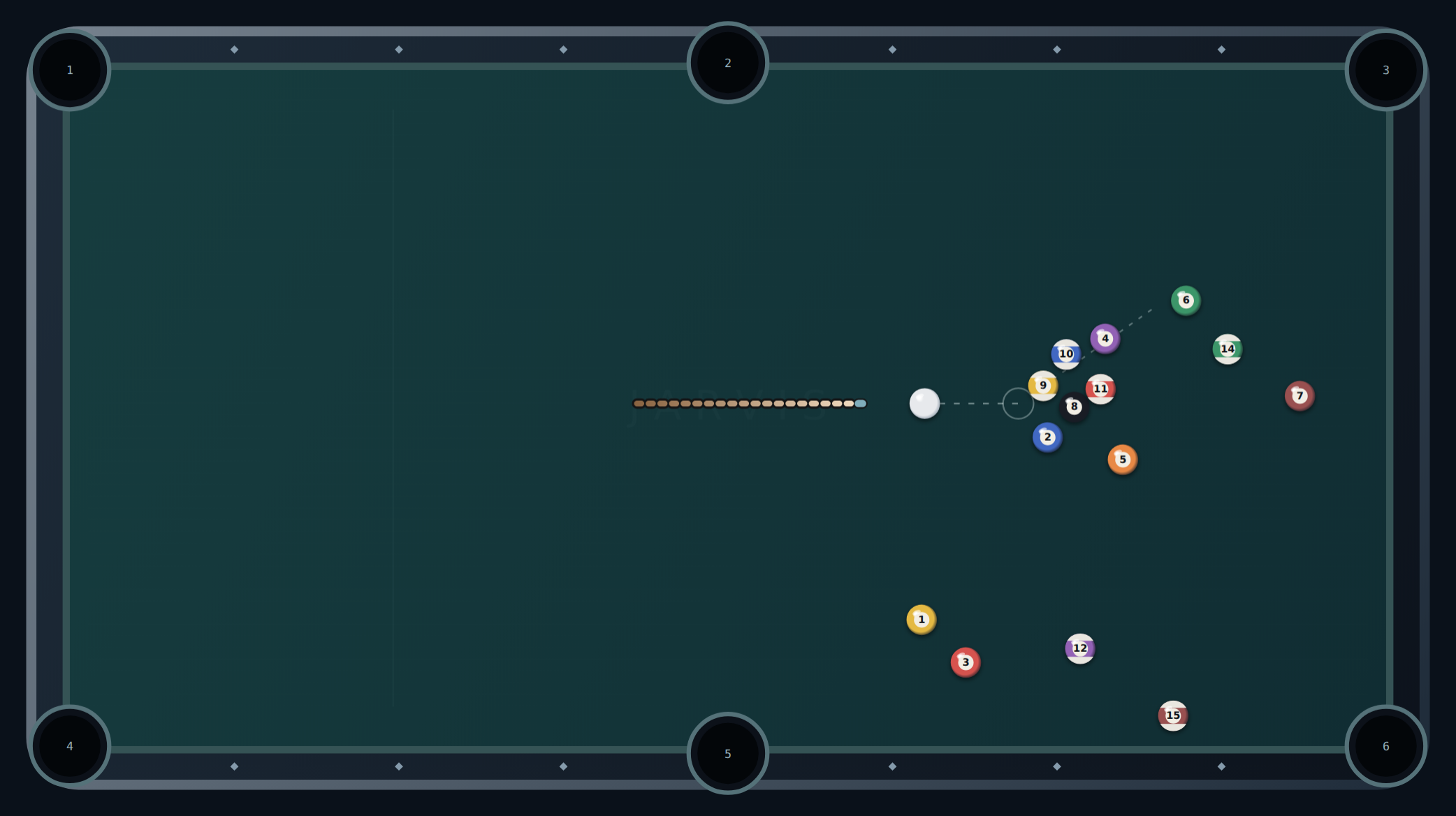
Set your power, line up the cue and take your shot. Challenge Jarvis, share a local match or bring friends to a private online room.
- Choose 1v1 or teams, then create a room.
- Share its six-character code or invite link.
- Friends join, choose sides and the host starts.
- Clear your group, call a pocket and pot the eight.
Up to four players. 2v2 teams. Turns and shots checked by the server. No Jarvis Cash required.
Play 8 Ball ↗
02 / TOWER FLIGHTFly the face.
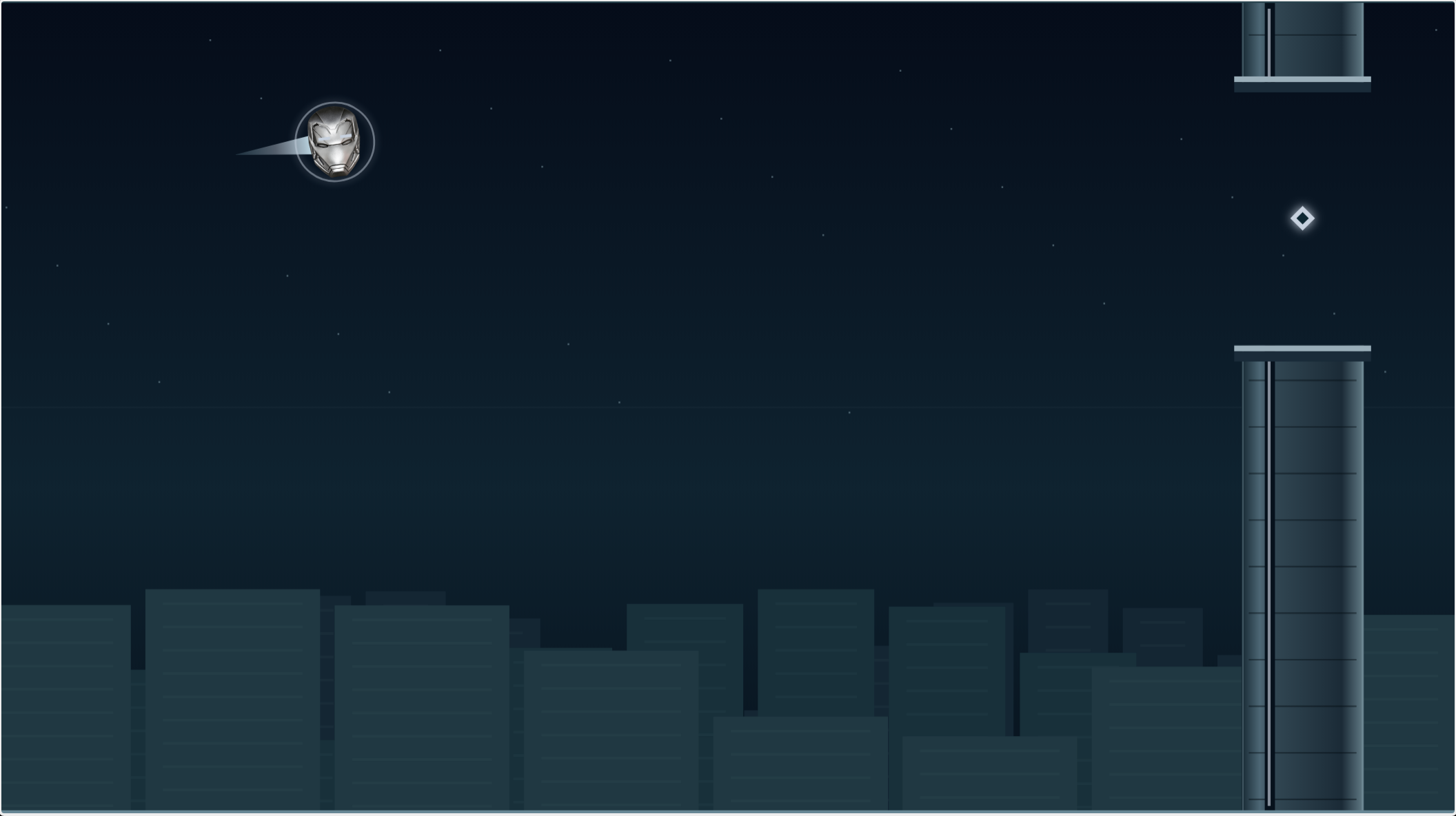
Take Jarvis through the skyline. Find high, middle and low gaps, watch the moving gates and collect energy cores on the way.
- Space or tap for a boost.
- Up/W to climb. Down/S to dive.
- Touch buttons for mobile players.
- Three difficulties and best scores on your device.
A solo flight. Switch tabs and the game pauses until you return.
Start flying ↗
03 / THE BROWSER & WINDOWS APPSA smoother
way through.
Less frame copying, smoother scrolling and a real frame counter, alongside better tab animations.
- Sharp and Fluid target 60 FPS. Data saver targets 15 FPS. Actual displayed frame rate is measured; idle pages show 0 new FPS.
- Choose ad blocking on or off.
- Brave Search, Google, DuckDuckGo or Bing.
- Normal local browsing or a temporary remote VPS session.
- The native Windows browser restores crashed tabs and supports your own proxy.
Owner and Member apps also have new game shortcuts. Use Settings → Test real frame rate to measure a moving page. Speed depends on the page, connection, display and VPS; 60–240 FPS is not guaranteed.
Open Jarvis Browser ↗
Find it in Discord, too.
J pool or J 8ball opens pool.
J flight or J tf opens Tower Flight.
J arcade shows the game collection.
One Jarvis. Your colour.
The update popup follows the website’s owner-selected accent colour. Its motion effects follow the owner’s motion setting and your device’s reduced-motion preference. Close it whenever you like, then reopen it from the What’s new tab.
 JARVIS